

Managing unsubscribes
How opt-outs work and how to manage unsubscribed contacts
When someone wants to stop receiving messages from you, they have a simple way to opt out. Understanding how unsubscribes work helps you stay compliant and respect your clients' preferences.
How unsubscribe works#
If someone texts specific opt-out keywords, CurrentClient automatically marks them as unsubscribed and stops sending them messages:
Standard opt-out keywords:
- STOP
- QUIT
- UNSUBSCRIBE
- CANCEL
- END
When someone sends any of these words, they'll be immediately unsubscribed and you won't be able to send them messages until they opt back in.
Where to view unsubscribers#
You can see everyone who's unsubscribed in your Unsubscribers list. This list shows:
- When they unsubscribed
- Which number they unsubscribed from
- Their name if it matches a contact
This helps you keep track of opt-outs across your workspace and stay compliant with messaging regulations.
How people re-subscribe#
If someone wants to start receiving messages again, they need to text START to your number. This will automatically remove them from the unsubscribe list and allow you to message them again.
You cannot re-subscribe someone on their behalf - they must opt back in themselves by texting START.
Manually unsubscribe someone#
Sometimes you might need to unsubscribe someone manually (for example, if they asked you to stop messaging them through another channel).
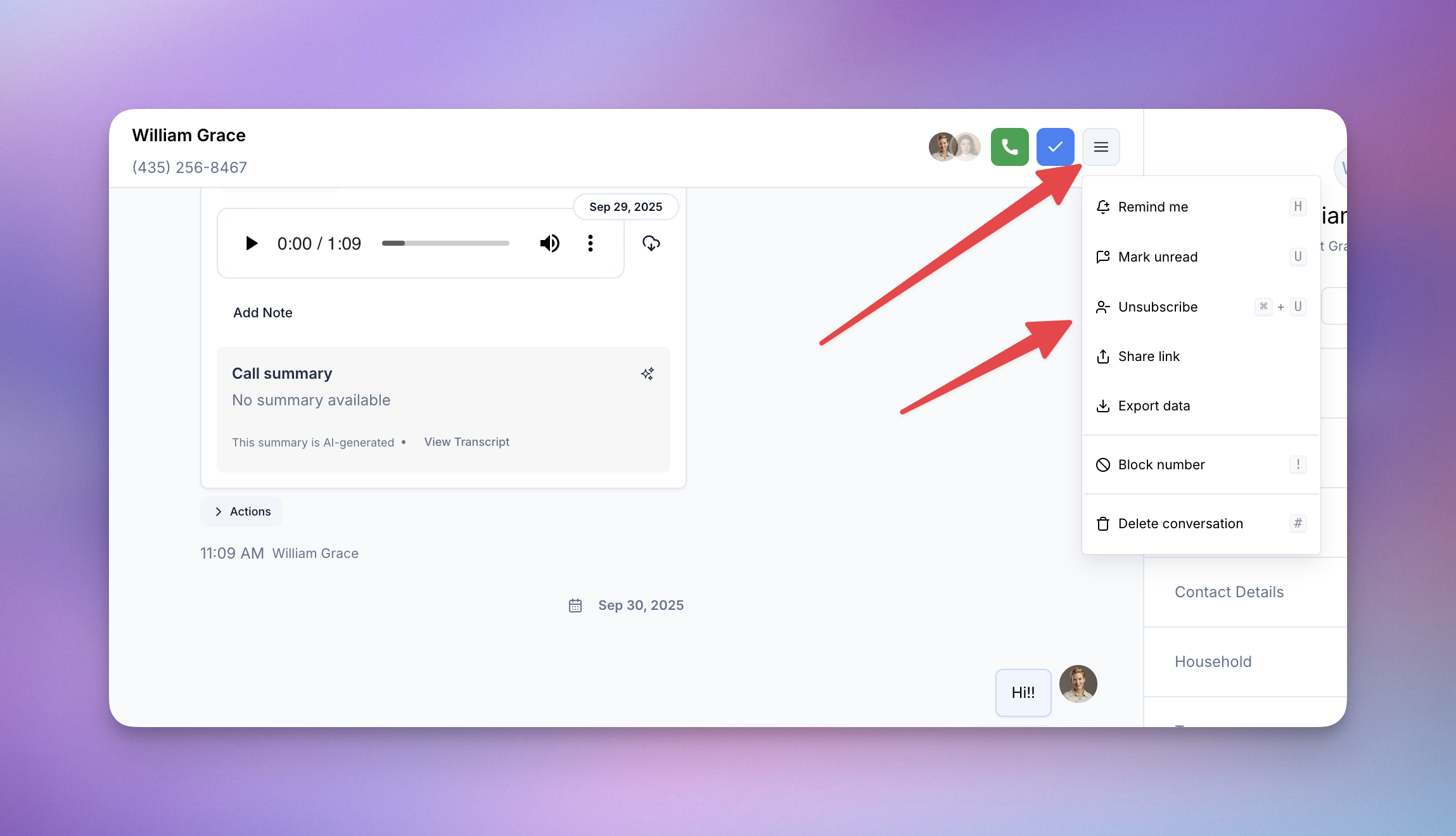
To manually unsubscribe someone:
- Open the conversation with the contact
- Click the actions menu on the top right
- Select "Unsubscribe"
They'll be added to your unsubscribers list and won't receive any more messages until they text START.